01
Enter the Show Code
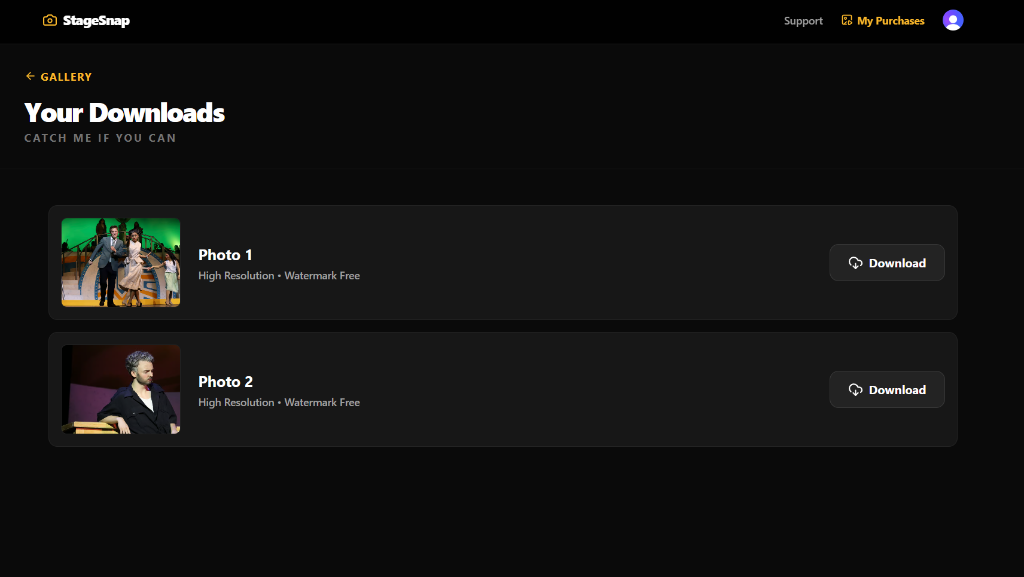
Start at stagesnap.app.
Enter the YOUR SHOW CODE provided by your production team to unlock your production's gallery.
Complete step-by-step journey from gallery to download
Start at stagesnap.app.
Enter the YOUR SHOW CODE provided by your production team to unlock your production's gallery.
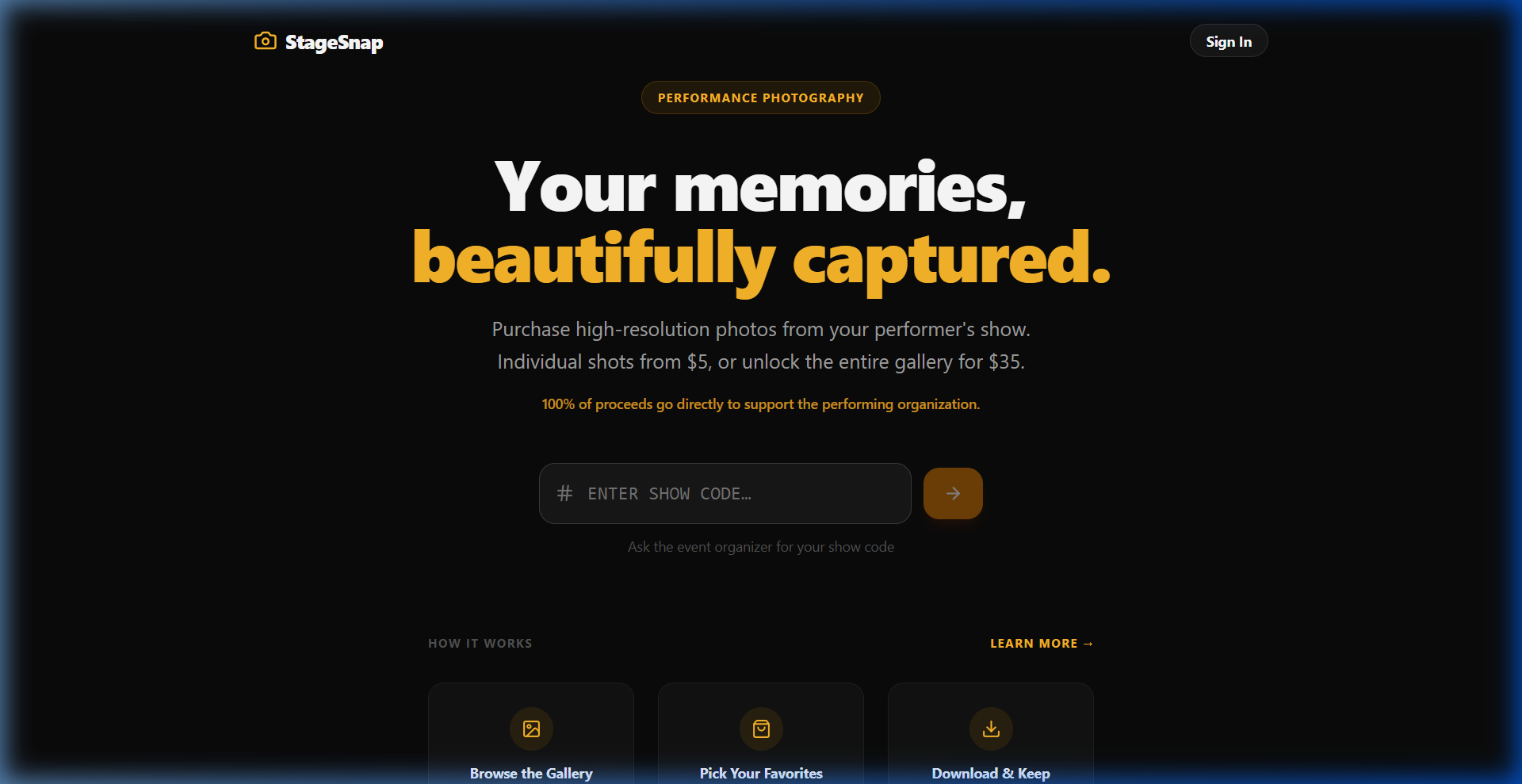
Browse through the high-resolution shots. Click the Select icon on your favorites. The checkout bar at the bottom will track your selection total.
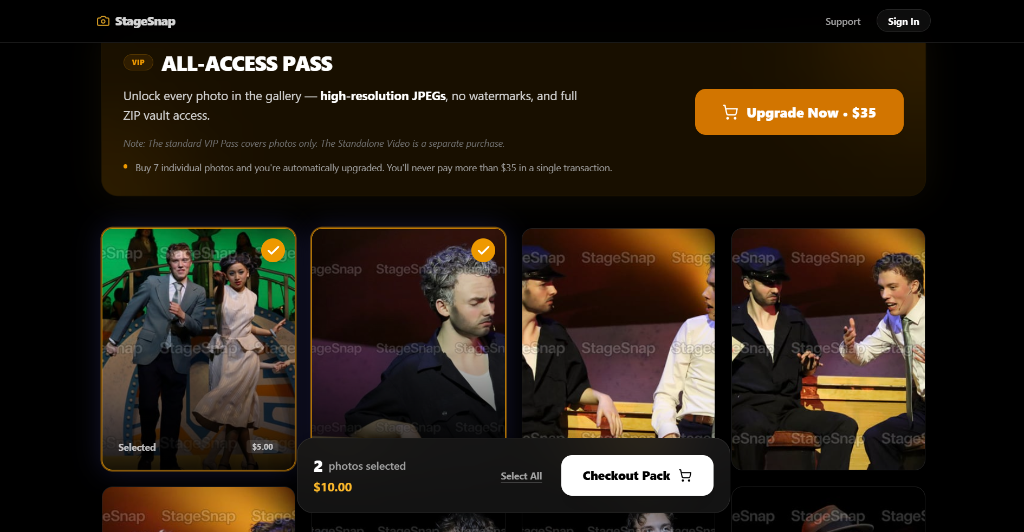
Enter your email address YOUR EMAIL to create your account or sign in.
This ensures your purchases are securely tied to your library.
StageSnap will send a secure sign-in link to your email. This passwordless flow keeps your account protected. Look for the subject: Your sign up link.
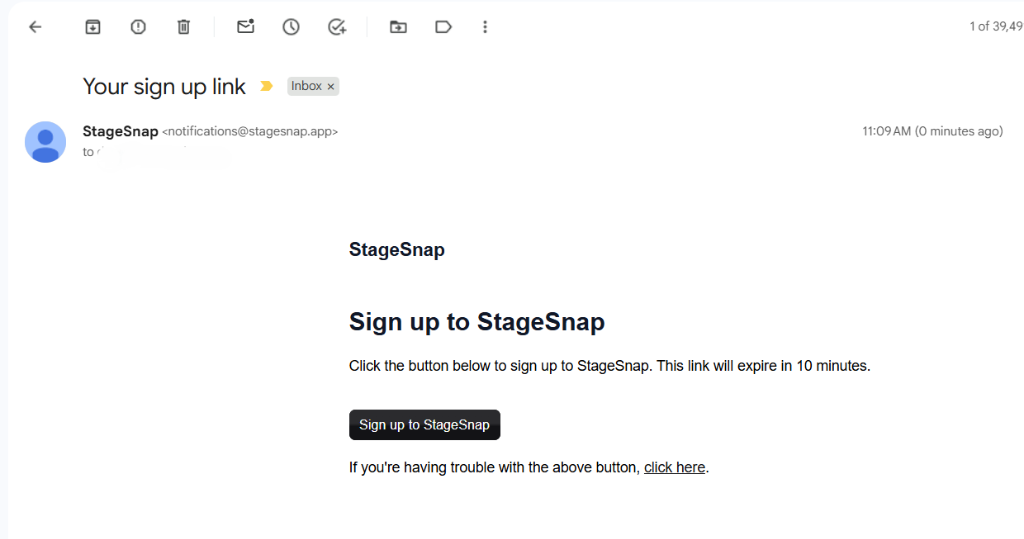
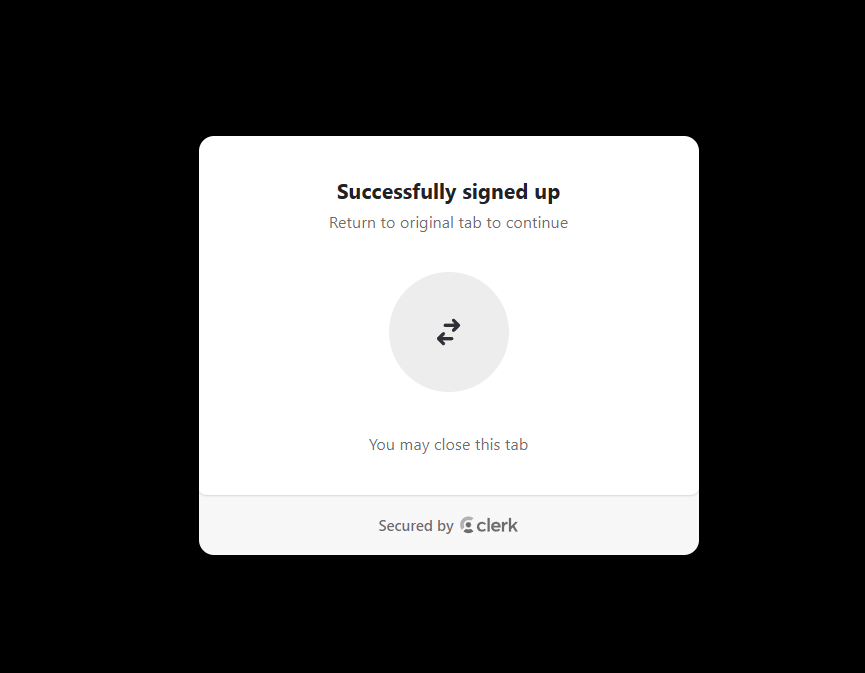
Click the Sign up to StageSnap button in the email. You'll see a confirmation tab letting you know the sign-up was successful.
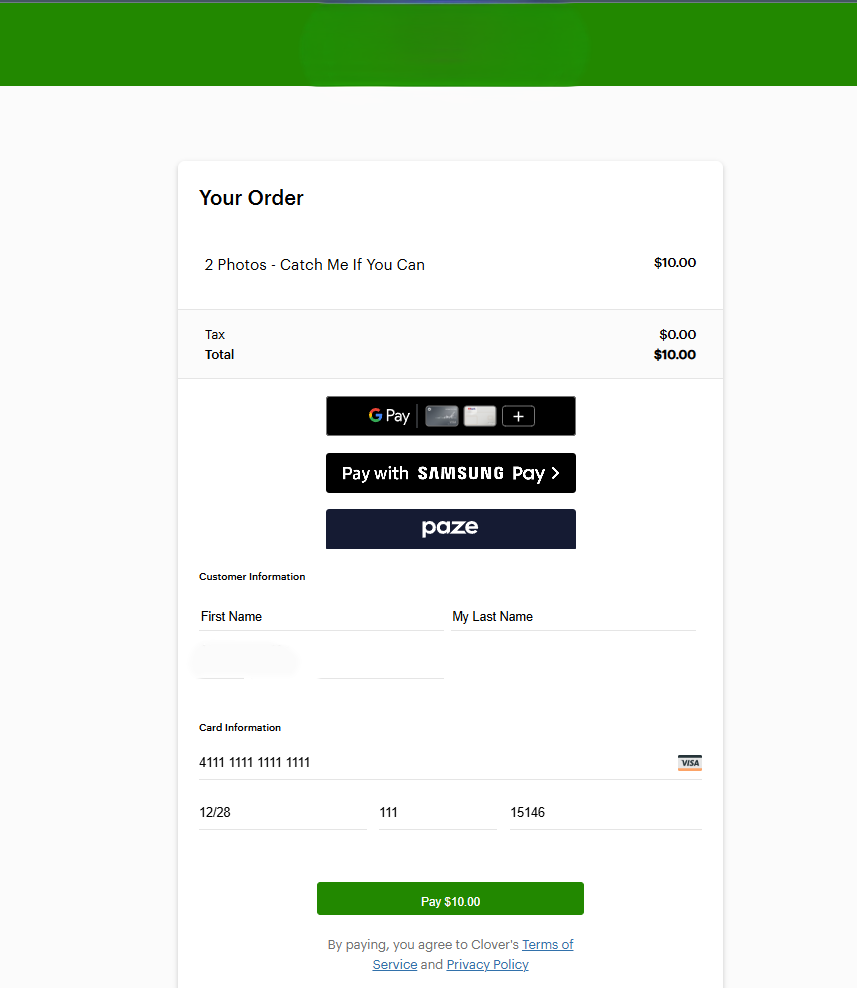
Review your order summary ($10.00 for 2 photos). Enter your name and credit card details in the secure Clover payment form.
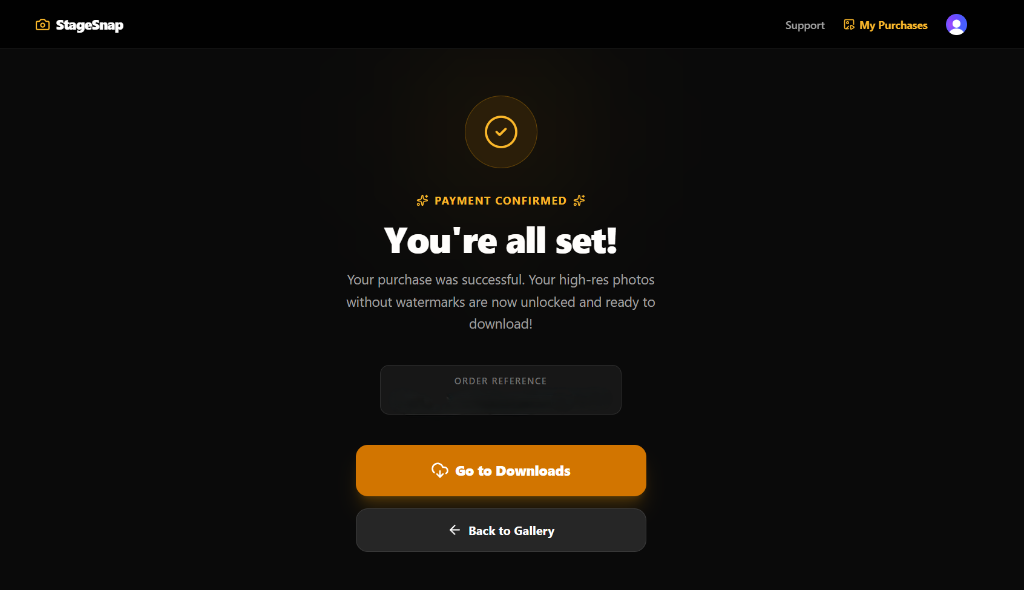
Once processed, you'll receive a unique Order Reference. Your high-res photos are now unlocked and watermark-free!
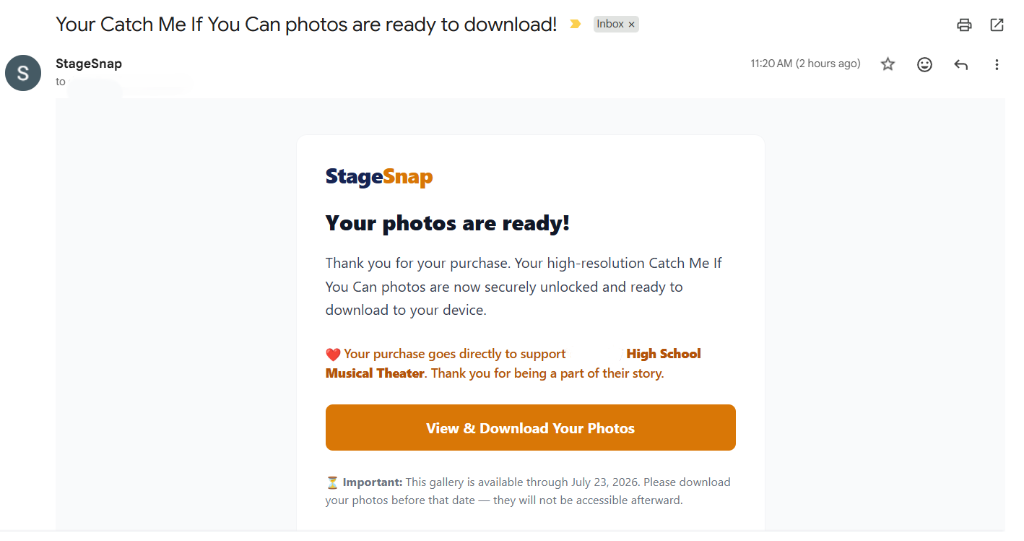
You will receive a final confirmation email when your photos are ready for download. Click the button in the email to jump straight to your secure library.
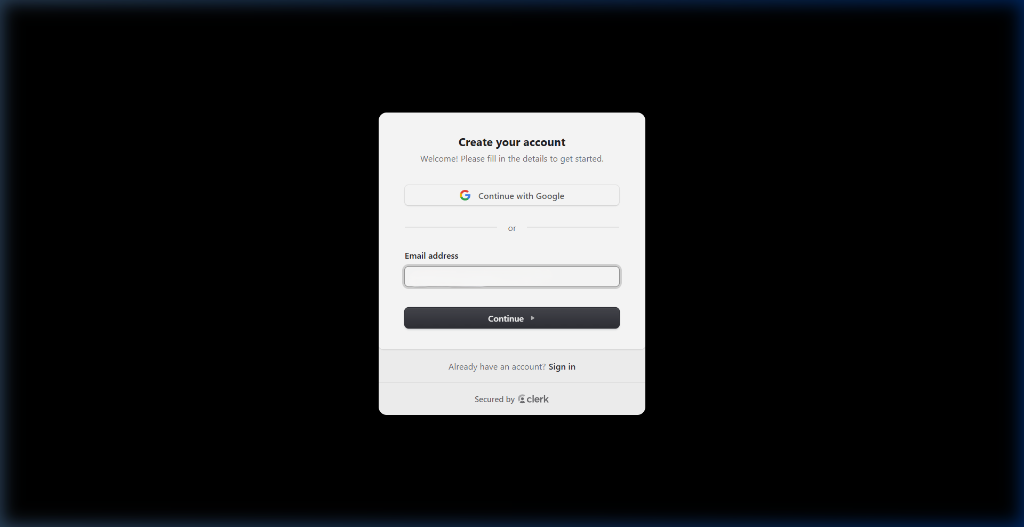
Navigate to your library to download your photos anytime. They are stored in your personal account for secure access.